Contents23 sections
Midjourney Settings Explained: Chaos, Raw, Stylize, and Other Useful Parameters
Midjourney can create impressive images from a simple text prompt, but its settings give you much more control over the result. You can decide how closely the model follows your prompt, how creative it should be, how different the images in a set should look, and even whether the result should be square, vertical, or horizontal.
This guide explains the most useful Midjourney settings in simple language. It focuses mainly on image generation and the current Midjourney models, including V8.2.
What Are Midjourney Parameters?
Parameters are short commands added to the end of a prompt. They begin with two hyphens.
For example:
a minimalist editorial photograph of a red chair in a white studio --ar 4:5 --raw --s 50
In this prompt:
--ar 4:5makes the image vertical.--rawreduces Midjourney’s automatic styling.--s 50uses a relatively low level of stylization.
Always place parameters at the end of the prompt. Leave a space before each parameter, do not separate the two hyphens, and do not add punctuation after parameter values.
Quick Reference Table
| Setting | Parameter | Main effect |
|---|---|---|
| Chaos / Variety | --chaos or --c | Controls how different the images in one set are |
| Raw | --raw | Reduces Midjourney’s automatic creative styling |
| Stylize | --stylize or --s | Controls how much artistic interpretation Midjourney adds |
| Weird | --weird or --w | Produces more unusual and experimental ideas |
| Aspect Ratio | --aspect or --ar | Changes the shape and orientation of the image |
| No | --no | Tells Midjourney which elements to avoid |
| Seed | --seed | Fixes the starting noise for controlled tests |
| Version | --version or --v | Selects a Midjourney model |
| Image Weight | --iw | Controls the influence of an image prompt |
| Style Reference | --sref | Applies the visual style of a reference image or style code |
| Style Weight | --sw | Controls the strength of a style reference |
| Personalization | --profile or --p | Applies a personal style profile or moodboard |
| Tile | --tile | Creates a seamless repeating pattern |
| Repeat | --repeat or --r | Runs the same prompt several times |
| Speed | --relax, --fast, --turbo | Chooses the generation speed and GPU usage |
| Resolution | --sd, --hd | Selects standard or high-resolution generation in compatible models |
| Quality | --quality or --q | Changes GPU time and detail in older compatible models |
Chaos: Control the Variety of the Results
Parameter: --chaos or --c
Range: 0–100
Default: 0
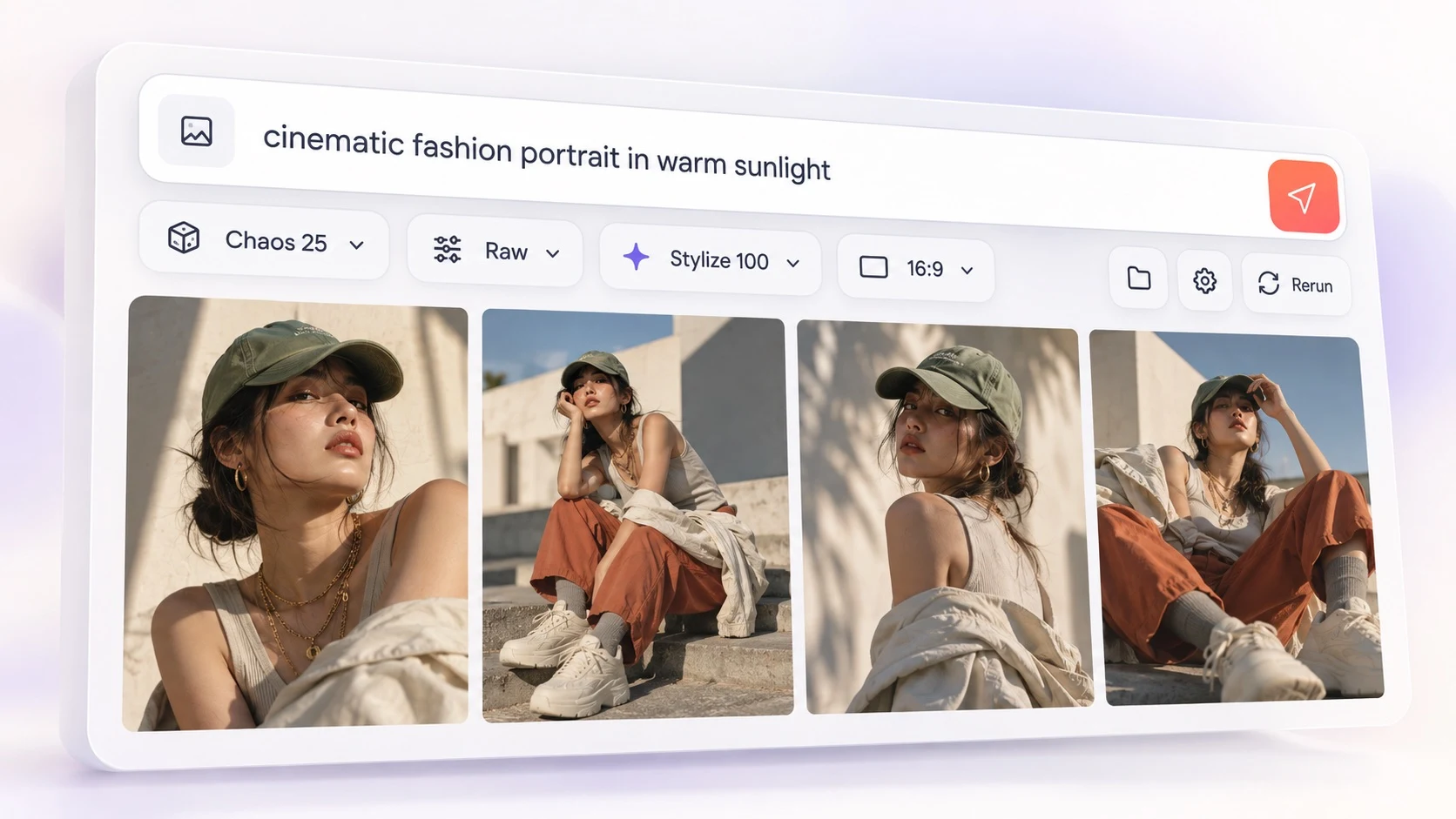
Chaos controls how different the four images in a generated set are from one another. On the Midjourney website, this setting may be labeled Variety.
At a low value, the four results usually follow a similar visual direction. Their composition, subject, and style may still differ, but they tend to feel like variations of the same idea.
At a high value, Midjourney explores more directions. The images may use very different compositions, colors, camera angles, or interpretations of the prompt. High chaos can help you discover unexpected ideas, but some results may follow the prompt less closely.
a futuristic botanical garden inside a glass tower --c 0
This should produce a relatively consistent set.
a futuristic botanical garden inside a glass tower --c 70
This is more likely to produce four clearly different concepts.
When to use Chaos
- Use
--c 0to--c 10when you already know what you want. - Use
--c 20to--c 40for useful variety without losing too much control. - Use
--c 50or higher when you are exploring ideas and want surprises.
Chaos changes the variety of the set. It does not simply make an image more artistic. That is the job of Stylize.
Raw: Reduce Midjourney’s Automatic Styling
Parameter: --raw
Midjourney normally adds its own visual taste to a prompt. This can make a short prompt look polished, cinematic, or dramatic even when you did not request those qualities.
Raw turns down this automatic creative treatment. It gives the words in your prompt more influence over the final result.
This does not mean that Raw produces an unprocessed file or a camera RAW image. It is a generation mode, not a file format.
Raw is especially useful for:
- realistic photography;
- product mockups;
- commercial images;
- controlled lighting and composition;
- prompts with a carefully described visual style;
- results that look too glossy, dramatic, or “typically Midjourney.”
documentary photograph of a small family kitchen on an overcast morning --raw
Without Raw, Midjourney may make the scene more cinematic or decorative. With Raw, it is more likely to respect the plain documentary direction.
Raw does not disable Stylize. You can use both together:
editorial fashion photograph, soft window light, muted colors --raw --s 50
This combination is a useful starting point when you want controlled, natural-looking photography.
Stylize: Choose Between Literal and Artistic
Parameter: --stylize or --s
Range: 0–1000
Default: 100
Stylize controls how much Midjourney’s artistic judgment influences the image.
A low Stylize value tells Midjourney to follow the prompt more literally. The result may be simpler, more direct, and easier to control.
A high Stylize value gives Midjourney more freedom to improve the image according to its own aesthetic preferences. The result may have more dramatic lighting, richer textures, a stronger composition, or a more polished visual style. However, small prompt details may become less important.
a ceramic vase on a wooden table, white wall, soft daylight --s 25
This should stay relatively close to the written description.
a ceramic vase on a wooden table, white wall, soft daylight --s 750
This may produce a more elaborate, artistic interpretation.
Useful Stylize values
--s 0to--s 50: literal and controlled;--s 100: balanced default;--s 200to--s 400: more polished and expressive;--s 500to--s 1000: strongly artistic and less predictable.
For realistic commercial photography, try --raw --s 25 to --raw --s 100. For posters, fantasy art, and editorial illustration, higher values can work well.
If Personalization is enabled, Stylize also controls how strongly your personalization profile affects the image. A higher value applies more of your learned aesthetic preferences.
Chaos vs. Stylize vs. Weird
These settings are easy to confuse, but they control different things.
| Setting | What it changes |
|---|---|
| Chaos | How different the images in the set are from one another |
| Stylize | How much artistic freedom Midjourney uses |
| Weird | How strange or unconventional the visual ideas become |
You can combine them, but high values for all three can make the results difficult to control.
Weird: Create More Unusual Images
Parameter: --weird or --w
Range: 0–3000
Default: 0
Weird encourages Midjourney to move away from familiar, safe, or predictable solutions. It can introduce unusual forms, strange styling, unexpected proportions, or surreal visual logic.
an elegant chair inspired by sea creatures --w 0
This may produce a polished chair with subtle marine details.
an elegant chair inspired by sea creatures --w 1200
This may produce a much more experimental object.
Start with a moderate value such as --w 100 or --w 250. Very high values are better for creative exploration than for precise work. Weird is experimental, so its effect can change as Midjourney updates its models. It is also not fully compatible with seed-based testing.
Aspect Ratio: Set the Shape of the Image
Parameter: --aspect or --ar
Default: 1:1
Aspect ratio describes the relationship between width and height. It changes the shape of the canvas, not only the number of pixels.
a quiet Mediterranean street in the early morning --ar 3:2
Common aspect ratios include:
--ar 1:1for a square image;--ar 4:5for vertical social posts and posters;--ar 2:3for portrait-oriented photography and prints;--ar 3:2for landscape photography;--ar 16:9for widescreen scenes and video thumbnails;--ar 9:16for vertical mobile content.
Aspect ratio can affect composition. A vertical canvas may encourage a full-body portrait or tall architecture, while a wide canvas gives Midjourney more room for environments and multiple subjects.
Use whole numbers, not decimals. For example, write --ar 139:100 instead of --ar 1.39:1. Extremely wide or tall ratios can produce unpredictable results.
No: Remove Unwanted Elements
Parameter: --no
The No parameter tells Midjourney which objects or visual features it should try to exclude.
a minimalist living room with pale oak furniture --no plants, rugs, artwork
Use a list of clear nouns or simple features. Avoid complicated negative sentences in the main prompt such as “a room without plants.” Image models can pay attention to the word “plants” and include them anyway.
The parameter is not a perfect guarantee. If an unwanted element is strongly associated with your subject, you may need to generate again or rewrite the positive part of the prompt.
Be careful with phrases inside --no. Midjourney may read each word separately. Instead of --no modern clothing, describe the historical clothing you want in the main prompt.
Seed: Make Comparisons More Controlled
Parameter: --seed
Range: whole numbers from 0 to 4,294,967,295
Every image begins with a field of random visual noise. A seed identifies that starting pattern. When you use the same prompt, model, parameters, and seed, the results can be very similar.
studio photograph of a green glass bottle --seed 2456 --s 50
Seed is most useful for testing. For example, keep the seed fixed and change only Stylize from 50 to 500. This makes it easier to see what the parameter itself changes.
Seed is not a reliable way to save a character, composition, or style forever. Model updates, different settings, and even a later session can change the result. In V8.x, seed-locked results are designed to be very close, but you should still treat seeds as an experiment tool rather than a permanent consistency system. Avoid Turbo mode when seed accuracy matters.
Version: Choose the Image Model
Parameter: --version or --v
Different Midjourney versions interpret prompts differently. They may have different aesthetics, feature support, speed, and prompt accuracy.
At the time of writing, V8.2 is the default model. You can select a different compatible model when you want its particular look or features.
a surreal red house in a snowy landscape --v 7
Do not expect an old prompt to produce the same image in a newer version. When testing parameters or recreating an older result, always check which model version was used.
For anime and Eastern illustration styles, Midjourney also offers the specialized Niji models. Niji is a model choice, not simply a style filter.
Image Weight: Control an Image Prompt
Parameter: --iw
An Image Prompt uses an uploaded image to influence content, composition, and colors. Image Weight controls how strong that influence is compared with the text prompt.
[image URL] a quiet bedroom with linen bedding and morning light --iw 2
A lower value gives the text more freedom to change the idea. A higher value makes the generated result follow the reference image more strongly.
The exact range depends on the selected model version. The default is normally 1. Crop the reference image to roughly the same aspect ratio as the intended result for better composition matching.
An Image Prompt is inspiration, not a copy command. If you need to modify a particular existing image precisely, use Midjourney’s Edit tools instead.
Style Reference and Style Weight
Parameters: --sref and --sw
Style Weight range: 0–1000
Style Weight default: 100
A Style Reference transfers the visual language of an image: its colors, medium, textures, lighting, and general mood. It is designed to influence style rather than copy the objects or people in the reference.
In Discord, the basic syntax is:
a portrait of an elderly gardener --sref [image URL] --sw 250
On the Midjourney website, you can upload or drag an image into the Style Reference section.
Style Weight controls the strength of the reference:
- lower
--swvalues create a lighter stylistic influence; - higher values make the reference style more noticeable.
You can also use Midjourney style codes instead of an uploaded image:
a small coastal hotel at sunset --sref 123456789 --sw 200
Keep the text prompt focused on the content you want. Too many style words can conflict with the reference.
Personalization: Apply Your Own Aesthetic Profile
Parameter: --profile or --p
Personalization uses a profile built from the images you select or like. Once the profile is unlocked, Midjourney can apply your visual preferences to new generations.
a modern apartment with vintage furniture --p
This uses your default profile. You can also add the ID of a specific profile or moodboard.
Personalization is useful when you regularly prefer similar colors, compositions, textures, or moods. It does not replace a clear prompt, and it may make your results look different from those generated by another person using the same words.
Remember that Stylize controls the strength of Personalization too. If the profile is overpowering your prompt, reduce --s. If its effect is too subtle, increase Stylize.
Tile: Generate Seamless Patterns
Parameter: --tile
Tile creates an image whose edges are designed to connect with copies of itself. It is useful for wallpaper, fabric, wrapping paper, game textures, and repeating website backgrounds.
hand-painted lemons and small blue flowers on cream paper --tile
Midjourney generates one tile, not a large repeated sheet. Use a pattern preview to see how copies connect.
Always test the final file before using it in production. Upscaling can break seamless edges, so check the repeated pattern again after any resize or external editing.
Repeat: Run the Same Prompt Several Times
Parameter: --repeat or --r
Repeat submits the prompt multiple times. For example:
a sculptural table lamp photographed in a white studio --r 3
This produces three separate image sets. Repeat is useful when you want to explore many results quickly, especially together with Chaos.
The available repeat count depends on your subscription. Repeat works only in Fast and Turbo modes, not Relax mode, and every repeated job uses GPU time.
Fast, Relax, and Turbo: Choose Generation Speed
Parameters: --fast, --relax, and --turbo
These modes mainly affect waiting time and GPU usage, not the artistic style of the image.
Fast Mode
Fast mode uses the monthly Fast GPU time included in your plan. It is the practical default for normal work.
Relax Mode
Relax mode places jobs in a queue and does not consume Fast time. Image generation in Relax mode is unlimited on eligible Standard, Pro, and Mega plans, but it can take longer. Repeat is not available in this mode.
Turbo Mode
Turbo uses a faster GPU pool and can generate images much more quickly, but it consumes Fast time at a higher rate. Turbo support depends on the model version. It is not available in V8.1/V8.2, and it is a poor choice when you need reliable seed matching.
SD and HD: Choose the Starting Resolution
Parameters: --sd and --hd
Compatible V8.x models can generate standard 1024-pixel images or 2048-pixel HD images directly. HD costs more GPU time but gives you a larger starting image without a separate upscale.
Use SD for prompt development and broad experimentation. Use HD after the composition and prompt are working, especially when you need more room for a print or detailed final asset.
HD has additional limitations. Its maximum supported aspect ratio is narrower than SD, and some editing operations can return the result to SD resolution.
Quality: An Important Compatibility Warning
Parameter: --quality or --q
Quality controls how much GPU time an older compatible model spends on the first generated image set. Higher settings can change textures and fine detail, but they also cost more GPU time.
Many older tutorials recommend --q 2 or --q 4. However, the Quality parameter is not supported in V8.1 or V8.2. In V7, the supported values are 1, 2, and 4, with 1 as the default. V6 uses a different range.
Quality should not be confused with output resolution. A higher Quality value does not simply make the file larger. For current V8.x generation, use SD or HD when your goal is to choose the starting resolution.
Which Settings Should You Use?
There is no universal best combination. The right settings depend on the job.
Realistic photography
candid photograph of a woman reading beside a window, overcast daylight, natural skin texture --raw --s 50 --c 10 --ar 4:5
Raw and low Stylize reduce automatic glamour and keep the prompt in control.
Commercial product image
minimal studio photograph of a clear skincare bottle on pale stone, soft diffused light, clean white background --raw --s 25 --c 5 --ar 4:5
Low Chaos keeps the options related, while Raw helps prevent unnecessary decorative styling.
Editorial poster
surreal architectural poster of Barcelona, geometric shadows, muted red and cobalt blue --s 500 --c 30 --ar 4:5
A higher Stylize value gives the model more room to build a strong visual composition.
Experimental concept art
a library grown inside a translucent living organism --s 600 --c 65 --w 750 --ar 16:9
Chaos explores different concepts, Stylize improves artistic interpretation, and Weird moves the ideas away from familiar solutions.
Seamless pattern
small imperfect ink drawings of sardines, olives, and lemons on warm white paper --tile --s 250 --c 15
Tile creates matching edges, while moderate Stylize adds character without making the pattern too chaotic.
Final Thoughts
Midjourney parameters work best as creative controls, not as magic commands. Chaos changes variety. Stylize changes artistic freedom. Weird changes how unconventional the ideas are. Raw reduces the model’s automatic styling and gives your prompt more influence.
Change one setting at a time when learning. Use a fixed seed for comparisons, keep the model version the same, and save combinations that work well for your type of image. Once you understand the role of each parameter, you can move from random experimentation to a much more deliberate and repeatable creative process.